Hello Everyone,
In my previous blog, I have listed down the steps on how to enable the API services for Dynamics 365 Business Central. In case you missed the blog, you may go it through here.
So, in this blog, we’re going to create the first API in D365 BC to read the data from the Item Table.
Before we dive into the development, I wish to share some best practices of API design, which we need to keep in our mind whenever we choose APIs as an option to perform any work.
1. API Naming – URL Name, API Node name
- Always start with a small letter
- EntityName will always start with the source table name
Example: API for item journal line: itemJournalLine
- EntitySetName will always start with source table name + ‘s’
Example: API for item journal line: itemJournalLines
- API Node name will always follow the field name.
Example: “Item No.” becomes itemNumber and “No.” becomes number.
- 1 Table only 1 API
- Try not to create multiple APIs to perform different operations on a single table. It might create confusion as well as, conflicts of the entity names. So always try to make it simple and reuse the API already created for a table.
- Try to avoid the below-mentioned things to get proper response from the API
- Predefine filter
- Condition output
- Error Handling
Ok, so let’s move to the API designing part now. Creating a new Page with Type: API and Source Table: Item.

So now the page design is ready with 3 fields in it :

Next, let’s go to the Properties and make the necessary changes.
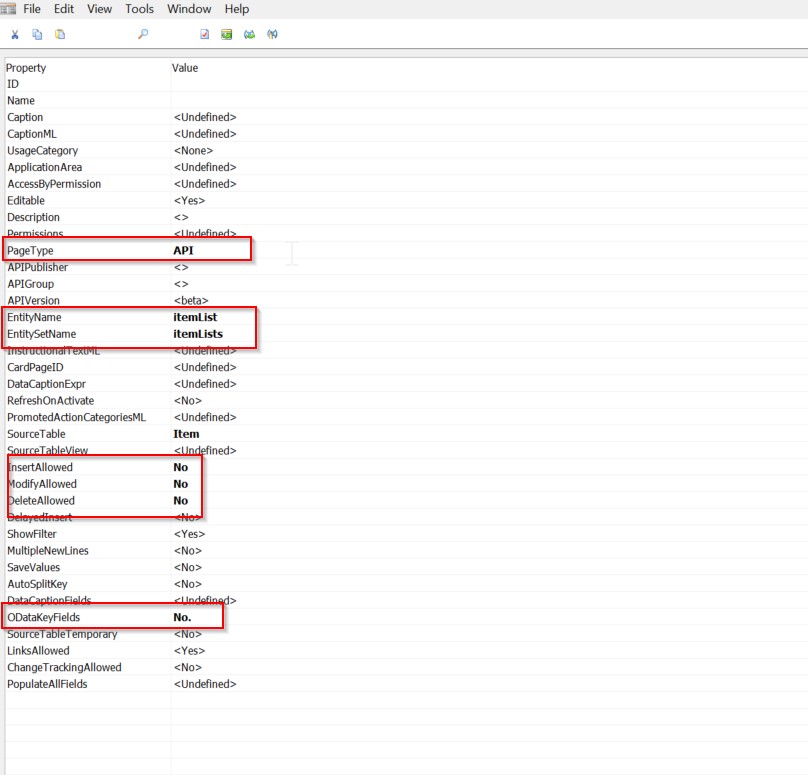
Basically, these are the properties we need to look into, so I’m coming to each of these ones by one :
EntityName and EntitySetName: These are the identification parameters of an API, so whenever we assign the names we need to be careful.
InsertAllowed, ModifyAllowed, and DeleteAllowed – I set all these to No as for this API we’re not going to make any Record level changes, but our main intention is to read the records from the table. So better to set these as No.
ODataKeyFields – Basically this is the Key based on what we can get the data. It’s not mandatory if the ODataKey is same as the Source Table Primary Key, but it’s good to make it a practice to assign. We can define a set of fields also as a key for our API.
Next is the Field naming.
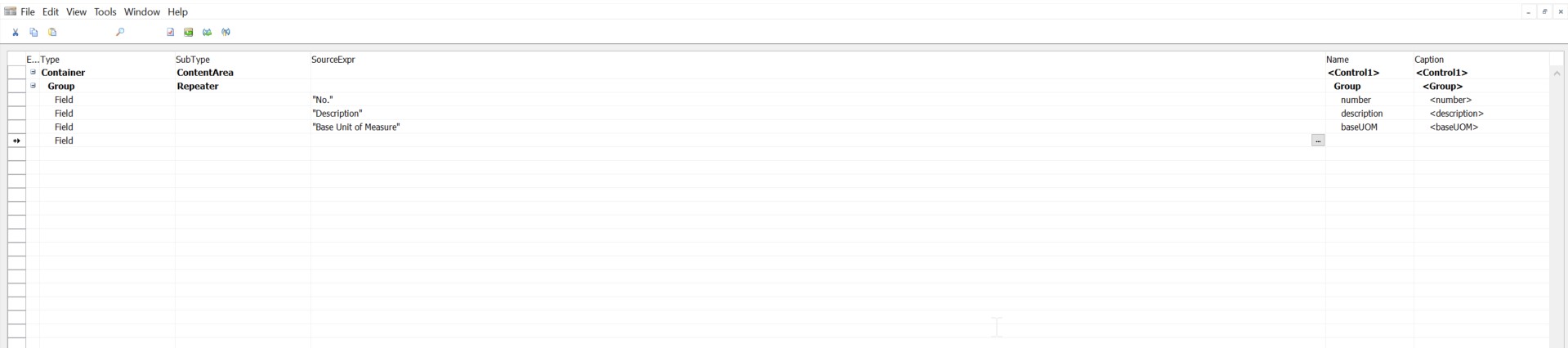
I practice, the field naming in an aforesaid way, but if you wish you can skip this part too.

Identify your Entity name from the published API list and also get the company ID of the company you wish to retrieve the data from.

Copy the Company ID as highlighted.
Then Let’s go to the API Request part. So, to process the API requests I’m using an agent called Google Postman, it’s a freeware, so you can download it and make use of the same.
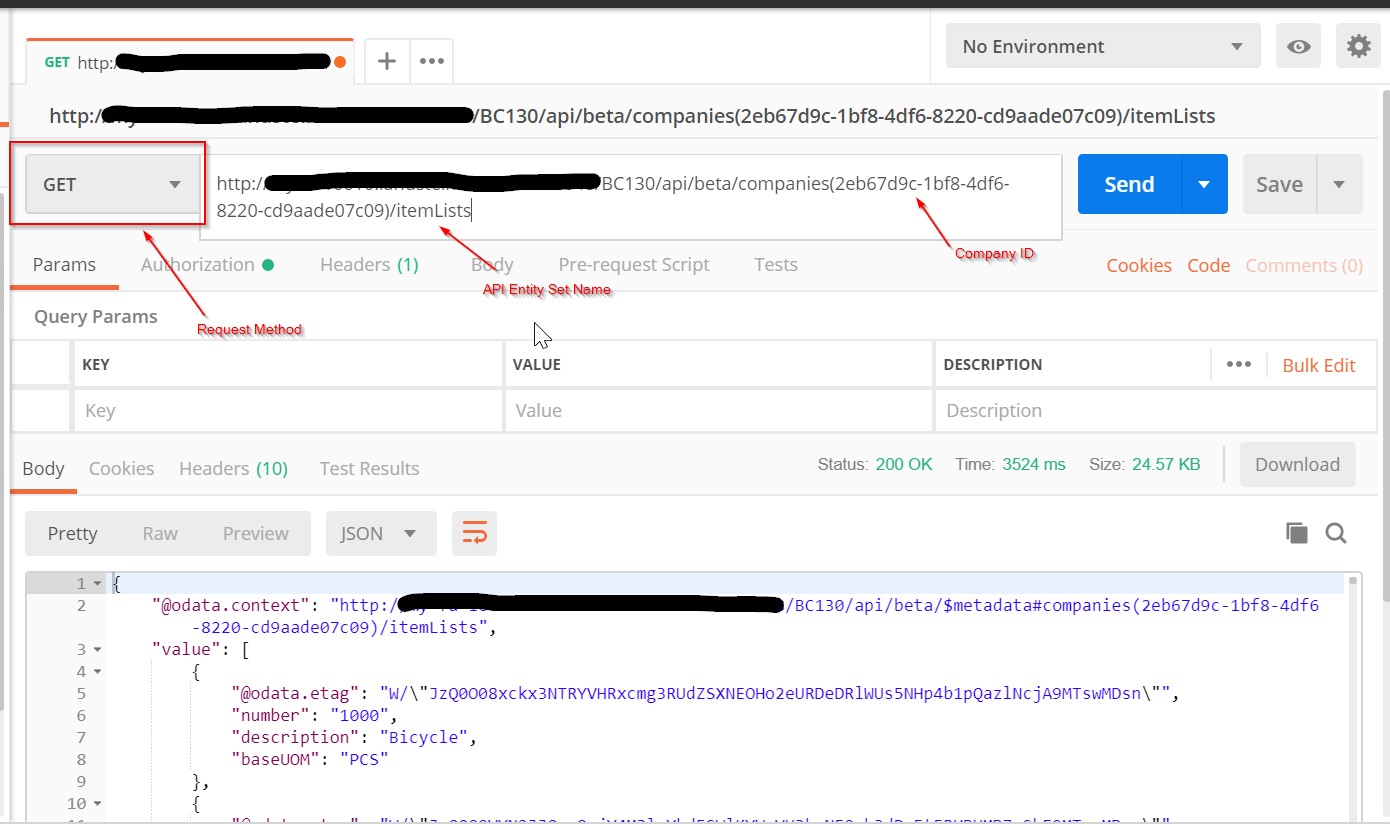
So, here you get the data from the Item Table using the API Request. The method we are using is GET, as we are reading the table data through this request.
If you wish can apply filters also while sending the request, like this :
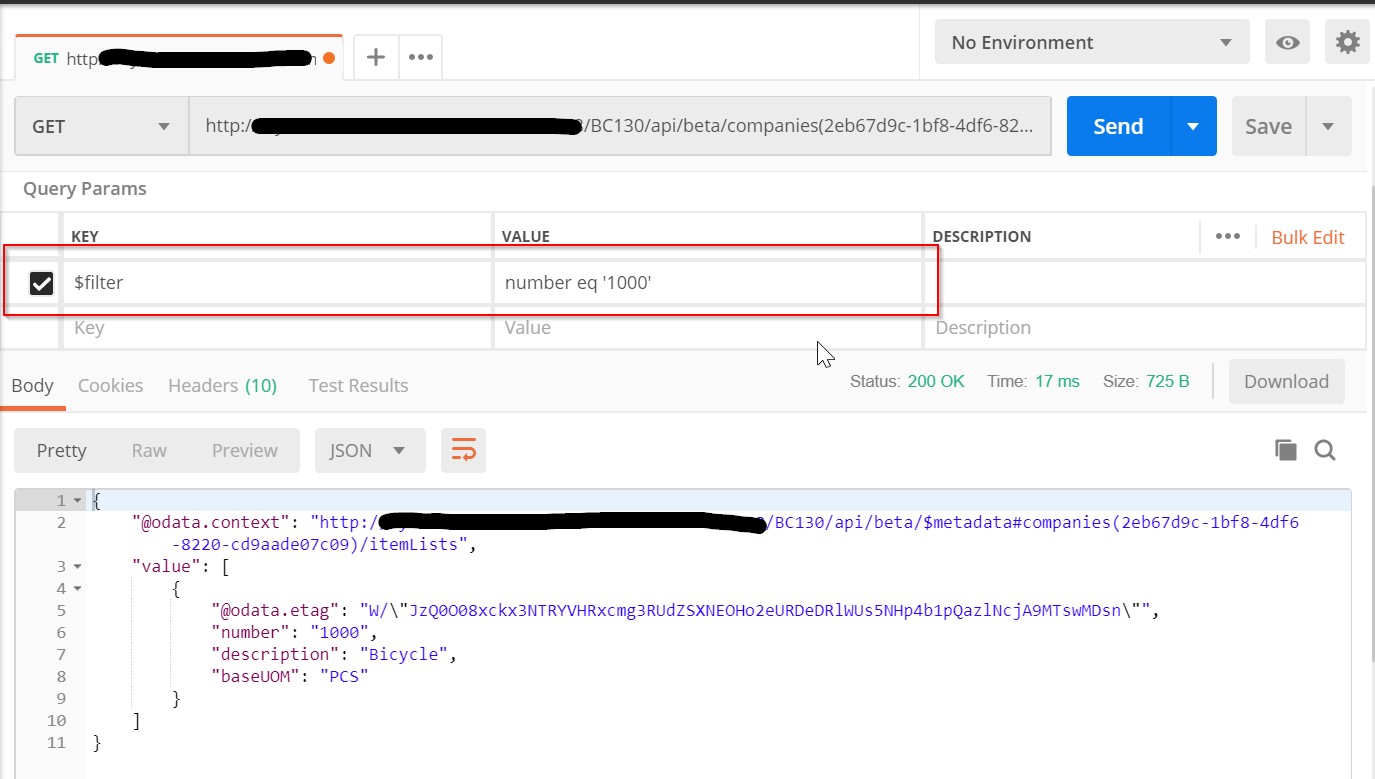
I’ll elaborate on the application of filters in the API Requests in another blog soon. Hope you found this blog useful.
Thank you for your time. See soon with another blog.


 My Dynamics Stories
Leave a reply to Abhishek Cancel reply