Hello Everyone,
Normally, we use XMLPorts, a traditional way to read data from any file into the NAV or Business Central database. Sometimes we need to spend a long hour to design the XMLPorts if the data we are importing is complex or includes many validations or with many columns included (Ex. – a file with 400 Columns).
Recently, while working on one of the Integration functionalities as an extension, I came across a similar situation and this time I found a much better way to deal with such case without spending much time on the design.
Let me give you all a heads up of the case before I explain how I dealt with it. For my customization, I had to read data from a File with 420 Columns inside though I had to read the values of only 20 columns from it, which were not in order. The last 2 columns which I had to read were in index 337 and 340, so I was going with the XMLPort then, I had to create at least 340 columns in it and additionally needed to write some validations as the expectation was to skip the 1st row of the file, while reading it and also with a Custom field separator (“|”).
Then I found a way to make use of the CSVBuffer table which can import the data from any readable file with any file extension (.txt,.csv,.xls), with any defined Separator and also have a built-in function to read the values for a particular index.
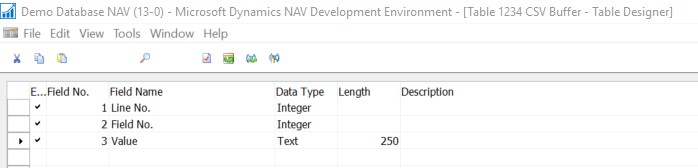
As we can see that the table has only 3 Fields in it, where the 1st 2 fields are the part of Primary key and are responsible for creating the index, while the 3rd field is keeping the column value from the file.
For an example designed a file with 3 columns and with a separator “|”

in this file, the 1st row comes with the Column Caption, so while importing the value, we need to skip the 1st row.

We’ll import the values finally into this table.
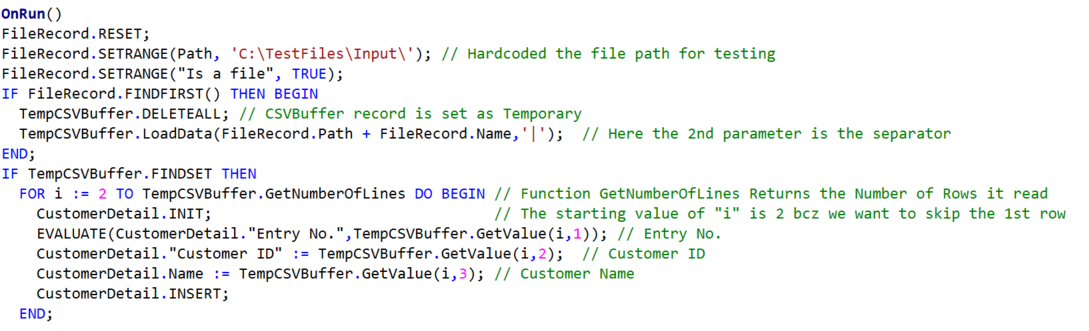
I designed a Codeunit to process the file and took the CSVBuffer Record as Temporary. As we can see the CSVBuffer is having a Built-in function (GetValue) to read the values for index. Where we need to pass the Row Number as a 1st Parameter and the Column as 2nd.
As we executed the Codeunit, it read the file from the defined folder and processed the data into the target table
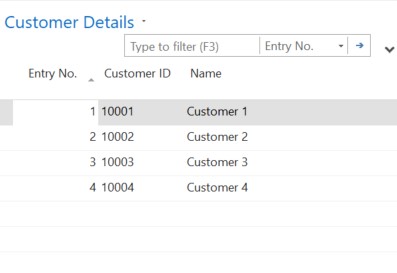
Though my example was with only 3 columns and 4 rows, we can use this trick for reading the large files to save our development time and ease the process.
Hope you find the details useful !!
 My Dynamics Stories
Leave a comment