API (Application Programming Interface) is an interface which allows you to communicate with your D365 Business Central Database.
D365 Business Central lets us create and manage the APIs in a very simple manner by adding a new PageType : API.
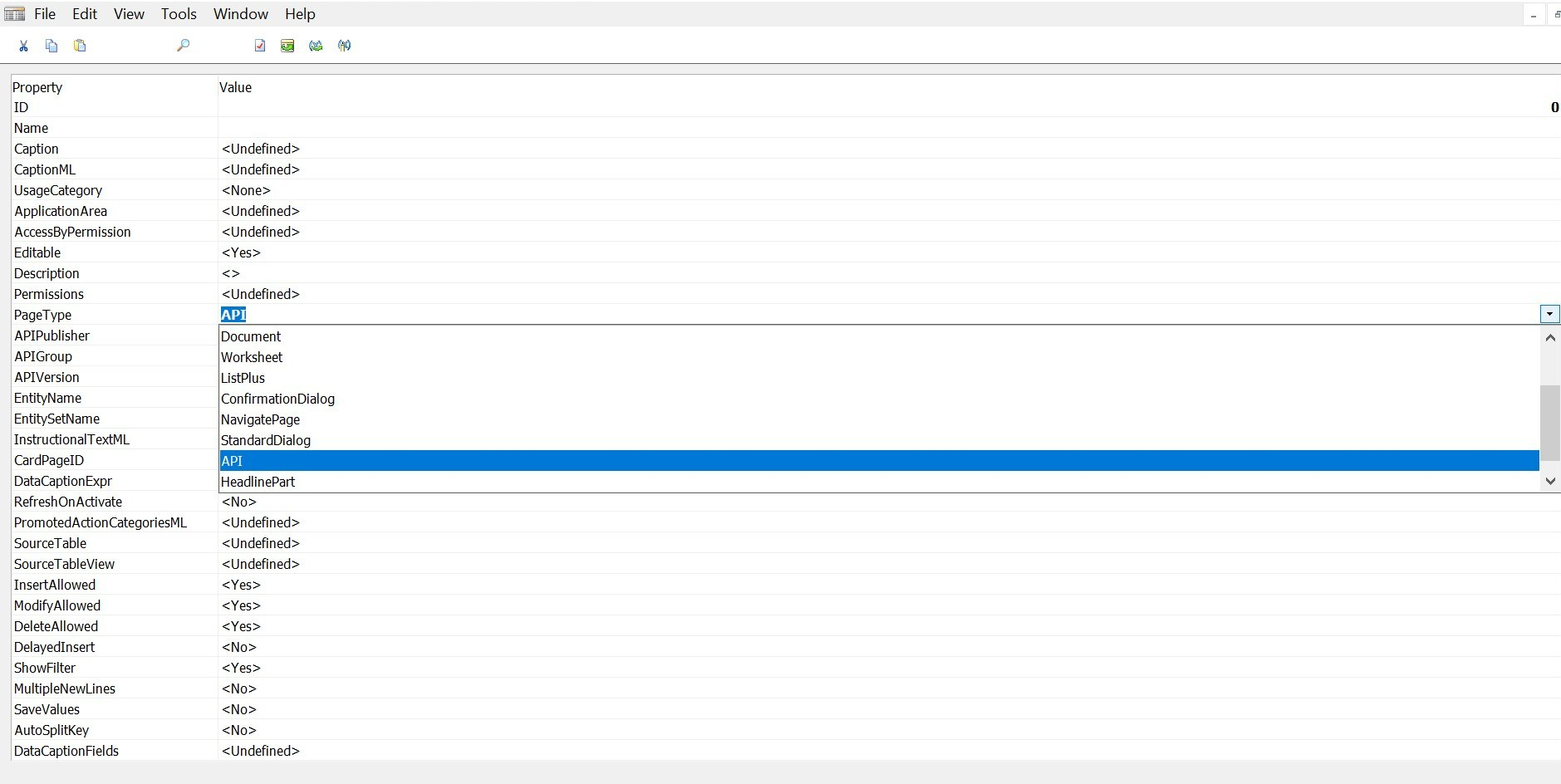
Through the APIs we’re allowed to do only 4 basic operations, i.e. Create, Read, Update and Delete (CRUD) but in order to work with APIs we need some basic configurations which I’m going to show you in this blog.
Considering that you already have the Database and the Service created at your end.
Open the Business Central Administration console and go to the Service you wish to setup the API service for.
Then open the service parameters window and go to the Tab: OData Services
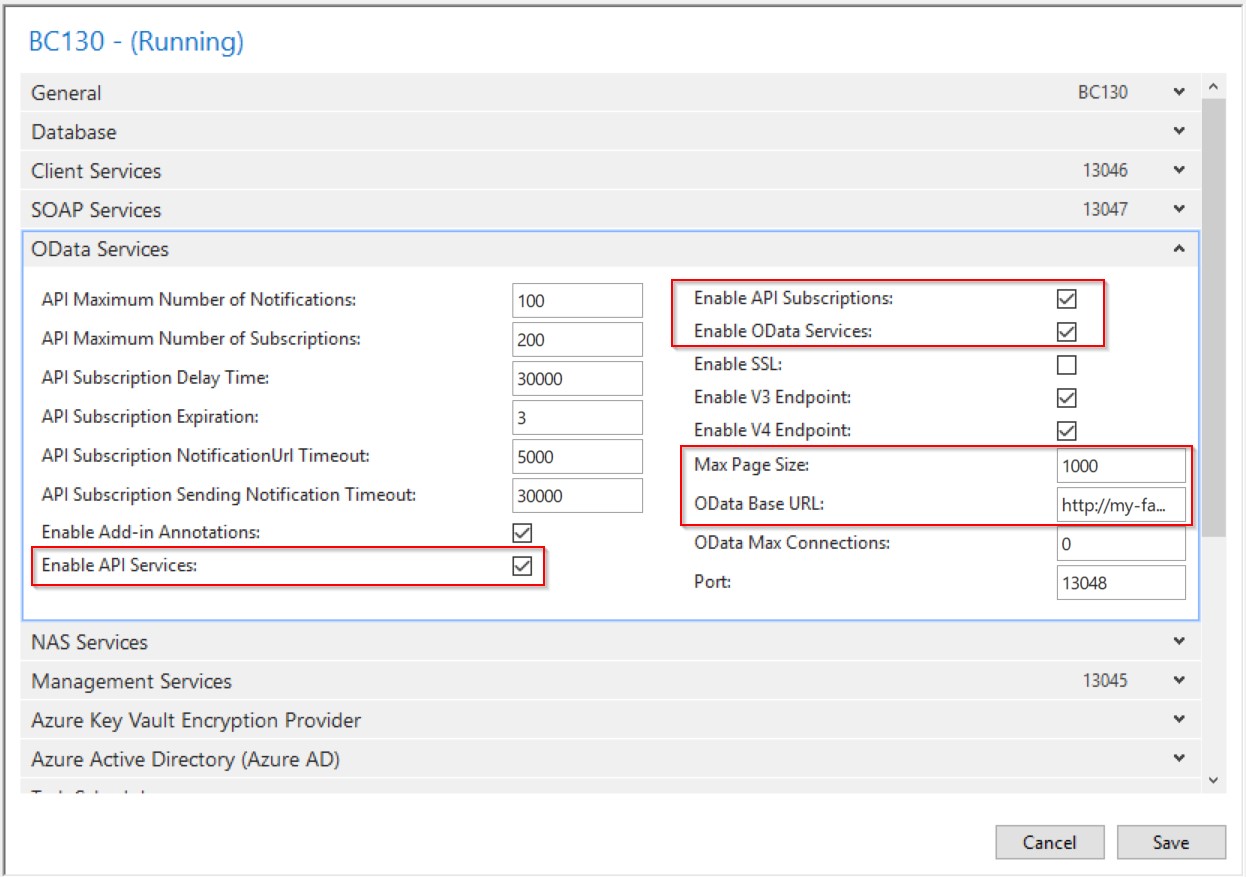
Please check the highlighted fields and define the Max Page Size of the API which defines how many records will fit under a single page of an API request. By default, the value is 1000, but if you wish to amend it as per your requirement.
Then let’s come to the OData Base URL field, which is the most important field to fill in, this stated URL will act as an endpoint for all your API requests you pass. So, if the URL is not right. You’ll not be able to process any API Request. I’m sharing the structure of the Base URL below for a better reference:
http://<localhost Address>:<OData Service Port No.>/<Service Name>/api/beta
Once you’re done with the aforesaid setup, Restart the Service, copy the Base URL and past in a web browser
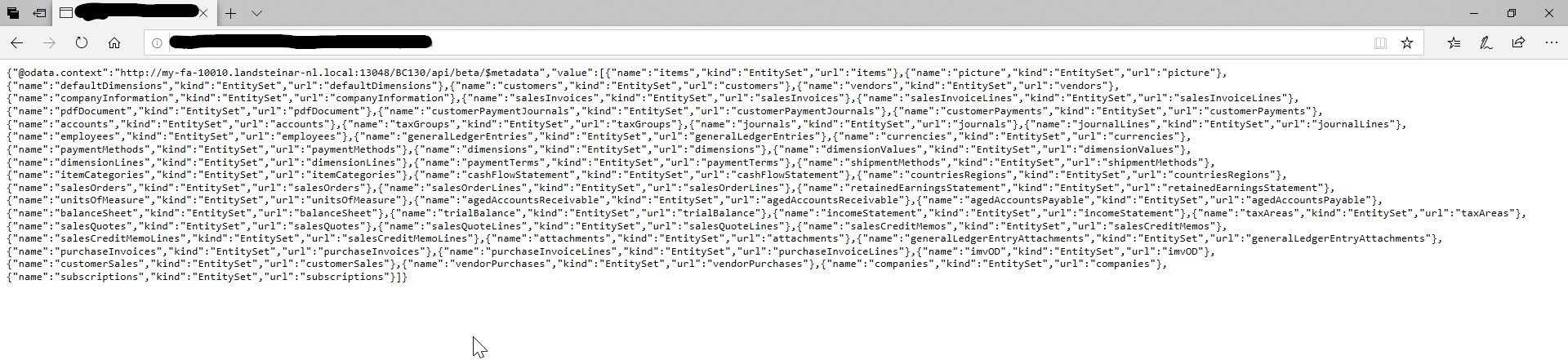
All the available APIs are listed against the Database.
So, I hope this blog was useful for you to kickstart the API Development in D365 BC. I’ll share more details on the API operations in detail in my coming blogs.
Thank you for sparing your time to read this blog !!
 My Dynamics Stories
Leave a comment